


ImOn Whole Home Wi-Fi
4.232.00 Reviews
App Specs
- Version
- 26.2.1
- Updated On
- License
- Free
- Downloads
- 10,000+
- Developer
- ImOn Communications, LLC
- Categories
- House & Home
- Platform
- Android
Screenshots
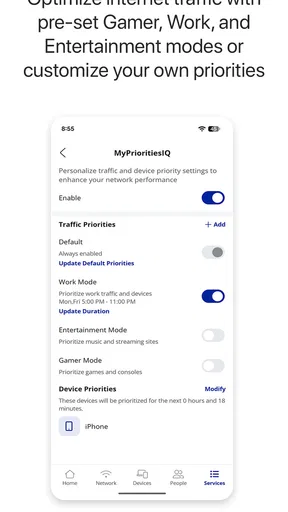
 Analysis by AppCompare
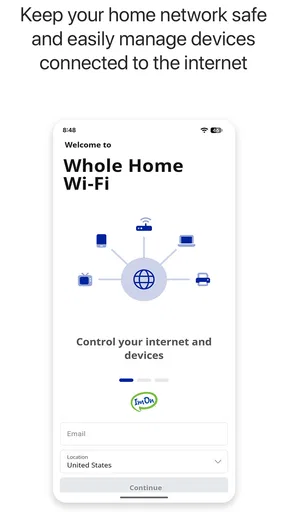
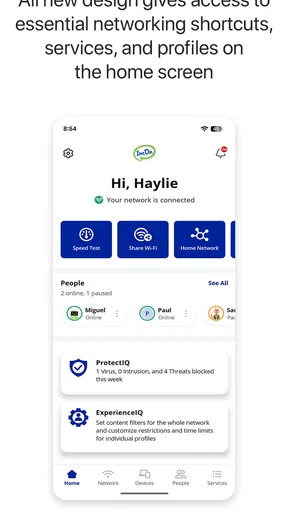
When home internet feels unreliable, the first question is often not “Is my provider down?” but “What is happening inside my own Wi-Fi?” ImOn Whole Home Wi-Fi is built around that question. It is a free House & Home app from ImOn Communications, LLC that lets me monitor and control my home Wi-Fi network from a mobile device.
That sounds simple, but the distinction matters. This is not a general-purpose internet speed tester, a replacement for a router, or a broad smart-home dashboard. Its value comes from giving an ImOn customer a more direct way to look after the Wi-Fi environment at home. Instead of treating the network as something hidden behind a modem and a few blinking lights, the app puts network management closer to everyday use.
I found the most useful way to judge it is to focus on that central capability: being able to monitor and control the home Wi-Fi network without relying only on the physical equipment. The benefit is not that it magically makes a weak connection faster. The benefit is that it can make ordinary network problems easier to understand and manage.
What the app’s main capability changes at home
Most people only notice their Wi-Fi when something goes wrong. A video pauses, a game disconnects, a smart speaker stops responding, or a child says the internet is slow. Without a management app, the usual response is to restart the router, move closer to it, or call support. Those actions can work, but they are blunt solutions.
This app gives the network a more visible control layer. Monitoring helps me think about the home connection as several connected devices and users rather than one single internet pipe. Control is useful because it turns a vague complaint into a practical decision: check the network, identify what needs attention, and adjust the setup when appropriate.
That is especially relevant in a whole-home environment. A modern household may have phones, tablets, televisions, speakers, cameras, computers, and appliances competing for wireless access. The challenge is not always the speed of the internet plan. It may be the location of a device, the number of active connections, or a problem affecting only one part of the home.
I would not describe the app as a technical toolkit for networking enthusiasts. Its appeal is more grounded. It is meant to make routine network oversight less intimidating for people who do not want to open a browser, search for a router address, and work through unfamiliar settings. The cleaner the experience, the more likely a household is to use it before a small issue becomes a repeated annoyance.
Worth Reading Before You Choose

EA SPORTS FC Mobile 26 Is a Bigger Football Game, but It Takes Time

Flipboard Shows What News Apps Must Do Beyond the Feed

Switching to Android Auto Means Rethinking Your Driving Routine

Google Calendar Makes a Crowded Week Easier to Manage

Ludo King Makes the Most of the Minutes Between Plans

Baby Panda World Brings Quick Play to Modern Phones, but Its Game Library Feels Busy
There is also a useful psychological effect. When the network is visible, it becomes easier to separate a Wi-Fi issue from a device issue. If one phone struggles while another works normally, the next step may be different from a situation where every device has trouble. That kind of distinction can save time, even when the eventual solution still involves restarting equipment or contacting the provider.
Monitoring is more useful when it supports a decision
A network monitor should not be judged by how much information it displays. It should be judged by whether the information helps me decide what to do next. In this case, the practical questions are straightforward: Is the home network behaving normally? Is a particular device contributing to the problem? Is the issue limited to Wi-Fi, or does it appear broader?
For a family, this can reduce the back-and-forth of guessing. Instead of asking everyone in the house whether the internet is working, I can start by checking the network view and then test the affected device. That does not remove every possible cause, but it gives the troubleshooting process a sensible order.
For someone living alone, the advantage is different. The app can make it easier to keep an eye on a network that supports work, entertainment, and connected household devices. A short interruption becomes less mysterious when I have a place to begin checking rather than immediately assuming the provider or the router is at fault.
Control is about convenience, not unlimited technical access
The word “control” can create unrealistic expectations. I would not install this expecting the depth of a specialist router utility. Advanced users may want detailed channel analysis, custom routing rules, extensive diagnostic logs, or fine-grained network configuration. Those needs belong to a different class of tool.
The more realistic expectation is easier day-to-day management of the Wi-Fi environment through an app associated with the ImOn service. That is a meaningful convenience for households that prefer guided controls over technical menus. It also means the app makes the most sense when used as part of an ImOn home internet setup, rather than as a universal manager for any router or provider.
This provider relationship is one of the app’s defining trade-offs. If my home internet service is not connected to ImOn, there is little reason to choose this particular app over the management application supplied with my own equipment or service. Its usefulness is tied to the environment it is designed to manage.
How I would use it in ordinary situations
The first step is to treat the app as a starting point for a network check, not as a promise that every problem can be fixed from a phone. When the Wi-Fi feels slow, I would open the app before changing several things at once. I would look at the network situation, consider whether the problem affects one device or the whole home, and then take the least disruptive action available.
That order matters. Restarting everything immediately can hide the original symptom, making it harder to learn what actually happened. A quick look through the app may show whether the issue appears isolated or widespread. Even when no instant fix is available, that context can make a later conversation with support more productive.
One realistic example is a busy evening at home. Someone is watching television, another person is on a video call, a teenager is playing online, and several background devices are connected. If one room suddenly seems to have poor Wi-Fi, I would use the app to inspect the network before blaming the internet plan. The problem may be local to wireless coverage or a single device rather than a total service failure.
Another useful moment is after adding a new connected device. Smart-home products are often installed quickly and then forgotten. A network management app gives me a reason to check whether the new device is behaving as expected and whether it is appearing within the home network as it should. That is more practical than keeping a handwritten list of every connection.
I also see value when helping a less technical family member. Asking someone to find a router label, enter an address into a browser, and interpret unfamiliar settings can be frustrating. A mobile app designed around home Wi-Fi is easier to introduce in a conversation. I can guide the person through the relevant screen without turning the call into a networking lesson.
A better troubleshooting routine
My recommended routine would be deliberately simple. First, note what is failing: one device, one room, or the entire home. Second, open the app and inspect the network rather than immediately changing settings. Third, test the affected device again after any adjustment. Finally, record the pattern if the problem returns.
The last step is easy to overlook. Repeated trouble at the same time of day or in the same part of the home points toward a different solution from a random device failure. The app cannot replace observation, but it gives that observation a useful place to begin. Over time, this can help me avoid repeating the same restart-and-hope routine.
There is also a practical household rule I would follow: make one change at a time. If I restart equipment, move a device, change a setting, and reconnect everything within a minute, I may get the network working but learn nothing. A monitoring and control app is most helpful when I use it as part of a calm process rather than as a collection of buttons to press in panic.
What the app cannot solve by itself
It is important to separate network management from physical Wi-Fi limitations. An app cannot move a router to a better location, remove thick walls, repair damaged cabling, or improve a device with an aging wireless adapter. If the signal is consistently poor in one area, the lasting answer may involve equipment placement or a different home-network design.
It also cannot guarantee that an internet service problem will disappear. If the provider connection itself is interrupted, local Wi-Fi controls may still be available while online services remain unreachable. That distinction is useful because it prevents me from treating every problem as a setting that can be corrected inside the app.
In other words, the app is strongest at visibility and everyday management. It is not a substitute for professional support when the underlying service, hardware, or wiring needs attention.
The household that benefits most from it
I think the best audience is an ImOn customer who wants more control but does not want to manage a network through complicated technical software. Families are a natural fit because many devices and users create more opportunities for confusion. The app can provide a shared reference point when one person is trying to understand why another person’s connection is struggling.
It is also a good match for people who regularly host visitors, work from home, or depend on Wi-Fi for several parts of daily life. In those situations, small problems have a larger cost. Being able to check the network from a phone is more convenient than waiting until a problem becomes severe enough to justify a support call.
Newer internet users may appreciate the guided nature of a provider-specific app. Someone who finds router administration pages intimidating can still benefit from basic monitoring and control. The app’s Everyone content rating also makes it suitable for a broad household audience, although that rating should not be confused with a promise that every network task will be understandable without any learning.
The app has a modest footprint in the wider mobile market, with over ten thousand installs and an average rating of 4.2 from around eighty ratings. I read that as a sign of a focused utility rather than a universal household essential. It has enough user attention to feel established for its purpose, but the rating should be treated as a general signal, not proof that every home will have the same experience.
The current release is version 26.2.1, and the app was released on August 30, 2022. It requires Android 10 or later, so anyone using an older Android phone should check compatibility before planning around it. That requirement is reasonable for a modern network-management tool, but it can matter in a household where an older spare phone is the device normally used for home administration.
Who should choose another approach
I would skip this app if I am looking for a provider-independent network manager. A router manufacturer’s application may be a better choice when I want to manage equipment from several brands or keep one interface across different internet services. A specialist networking tool may also be preferable if I need deep diagnostics rather than household-friendly oversight.
I would also look elsewhere if my main goal is measuring internet speed, organizing smart-home routines, or controlling devices unrelated to Wi-Fi. Those are separate jobs. This app’s purpose is narrower, and that focus is a strength only when it matches the problem I am trying to solve.
Advanced users should think carefully about the trade-off between simplicity and detail. A provider-managed experience can be easier for ordinary tasks, but it may not expose every setting an enthusiast expects. If I enjoy tuning wireless channels, building custom network segments, or reviewing extensive technical logs, a more advanced router platform could give me better control.
Trade-offs that matter before installing
The biggest trade-off is convenience versus flexibility. A dedicated app can make common actions easier because it is designed around one service environment. At the same time, that specialization limits its usefulness outside that environment. I would see this as a companion to an ImOn home network, not as an app I could carry from one provider to another.
Another trade-off is simplicity versus explanation. A streamlined interface may help me act quickly, but it may not teach me every technical reason behind a network problem. That is acceptable for routine management, yet it means I should not depend on the app alone when diagnosing complicated or recurring faults.
There is also a difference between remote convenience and physical access. Checking the network from a phone is practical, especially when I am away from the router or helping someone else in the home. But some problems still require checking cables, power, placement, or the affected device itself. The app can shorten the path to the answer without eliminating those hands-on steps.
My advice is to install it with a specific expectation: use it to make the home Wi-Fi easier to observe and manage. If I expect a complete technical command center, I may be disappointed. If I want a more approachable way to understand what is happening before taking action, the fit is much better.
Small habits that make it more useful
I would keep the app available before a problem occurs, not install it only during an outage. Learning where the network information and controls are while everything is working saves time later. It also gives me a normal baseline, which makes unusual behavior easier to recognize.
I would check the app after significant changes to the home setup, such as adding several connected devices or rearranging where people use Wi-Fi most often. That does not guarantee better performance, but it creates a simple habit of confirming that the network still reflects the household’s needs.
Finally, I would use the app alongside basic physical checks. If a device is offline, I would confirm that it has power. If one room is affected, I would consider distance and obstructions. If every device is affected, I would look for a broader service or equipment issue. This layered approach prevents the app from becoming a single explanation for every kind of connectivity trouble.
My final take on ImOn Whole Home Wi-Fi
After looking at the app through real household situations, I see it as a focused utility with a clear purpose. It brings monitoring and control of an ImOn home Wi-Fi network into a mobile experience, which can make routine troubleshooting less confusing and less dependent on technical router menus.
Its strongest quality is not flashy functionality. It is the way visibility can change the first response to a Wi-Fi problem. Instead of immediately restarting everything or assuming the internet service is broken, I can begin by checking the network and narrowing down what is actually affected. That is a small change in workflow, but it can save time in a busy home.
The limitations are equally clear. It is not the right choice for people who need a universal network manager, advanced diagnostics, or complete control over unrelated smart-home equipment. Its value is closely connected to ImOn service, and its Android requirement may exclude older phones.
For an ImOn customer who wants a straightforward way to keep an eye on home Wi-Fi, I would recommend trying it. This app is most worthwhile when you use it as a calm first step in troubleshooting, not as a magic fix for every connection problem. That expectation matches what it does best: making the home network more visible, more manageable, and easier to discuss when something goes wrong.
Pros
- Simple setup and management through the companion mobile app.
- Helps identify weak coverage areas around your home.
- Supports centralized control of compatible Wi‑Fi access points.
- Guest network options can improve security for visitors.
- Useful connection details help troubleshoot home network issues.
Cons
- Requires compatible ImOn equipment or service to access its full features.
- Some advanced settings may be limited compared with standalone router apps.
- Performance depends on the quality and placement of connected access points.
- May offer little value if your home already has strong Wi‑Fi coverage.
- App functionality can vary depending on your ImOn plan and hardware model.
FAQs for ImOn Whole Home Wi-Fi
What is ImOn Whole Home Wi-Fi?
ImOn Whole Home Wi-Fi is a companion app for managing a compatible ImOn home internet and Wi-Fi service. After signing in, users can typically view their network, check connected devices, manage access, and adjust available wireless settings from a phone or tablet. The exact tools shown may depend on the ImOn plan, gateway, and whole-home Wi-Fi equipment installed at the address.
What can I do with the ImOn Whole Home Wi-Fi app?
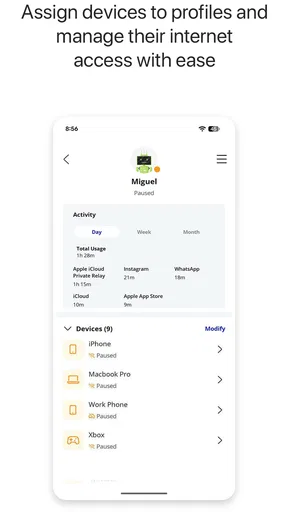
The app is designed to make everyday network management easier without opening a browser or contacting support for every small change. Depending on your equipment, you may be able to see which devices are online, rename devices, pause internet access, create guest access, manage parental controls, and review basic network details. Features can vary by service configuration and app version.
Do I need to be an ImOn customer to use this app?
Yes, the app is intended for customers who have an eligible ImOn internet service and compatible whole-home Wi-Fi equipment. You will generally need valid ImOn account credentials and access to the network associated with your service. Downloading the application alone does not provide internet service or unlock its management features, so availability may depend on your plan and location.
Can ImOn Whole Home Wi-Fi improve my wireless coverage?
The application itself does not increase signal strength or replace a router, modem, or mesh access point. Instead, it helps you manage the compatible whole-home Wi-Fi system already provided or installed by ImOn. If coverage is weak, the app may help identify connected equipment or network issues, but improving coverage can require repositioning hardware, adding approved equipment, or contacting ImOn support.
Is ImOn Whole Home Wi-Fi safe to use, and what permissions does it require?
The app manages sensitive home-network information, so you should install it only from the official Google Play Store or Apple App Store and keep it updated. It may request permissions related to local network discovery, notifications, or device management so it can display connected equipment and alert you about network events. Review the privacy policy and avoid sharing your account credentials with anyone.


